Hey everyone in case you didn’t hear, Pied Piper has been officially recovered and preserved with a fan translation on the way:
https://godsibb.net/index.php?threads/xenosaga-pied-piper-restored.446/#post-2978
It’s an exciting week for Xenofans. It feels like we’re getting two Xeno rereleases in one week! I’m sure a lot of people are looking forward to trying this long lost phone game out for themselves so the purpose of this thread is going to be a short guide to getting the Japanese version of the game up and running on your system using the Keitai community’s brand new KeitaiWorldLauncher (BETA). A lot of people were having issues with the Doja SDK guide especially the DoJaject portion so huge shoutouts to Yuvi, LNRC, RockmanCosmo, and xyz for making this all possible.
Step 1: Obtain the game files either through the Keitai Wiki’s Mega link or through the files that we are hosting here. You’ll want to click on the large purple download button on the page.

Step 2: You’ll want to download KeitaiWorldLauncher.zip from the Keitai community’s Mega Link. Just hit the […] then Download > Standard Download.
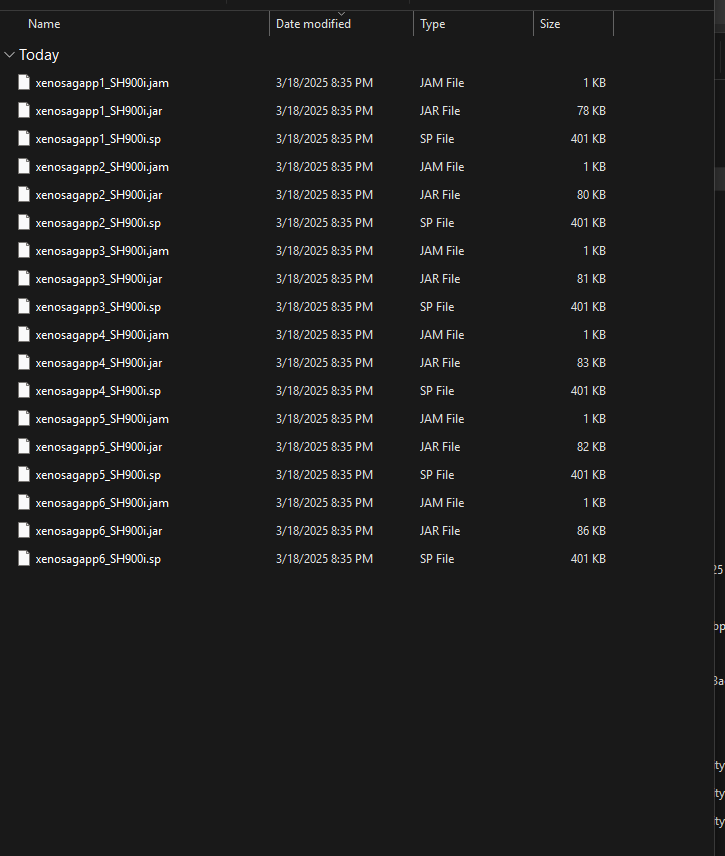
Step 3: Extract your game files. Make sure you remember where you extract them to. You should have a folder with contents that look like this:
Step 4: Extract KeitaiWorldLauncher.zip and launch KeitaiWorldLauncher.exe. It’s possible that your PC will be missing the Java 8 SDK and you’ll come across this dialog box:
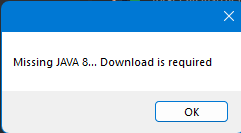
DON’T PANIC! Just click "OK’ and you’ll be directed to a MEGA Link with the Java SDK. Download and run the exe file from MEGA. Follow the Java setup wizard by hitting next using all default settings.
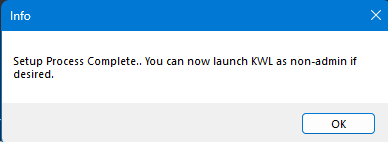
Step 5: Try running the KeitaiWorldLauncher.exe again. First time setup might ask you to run the program as administrator so go ahead and do that. Successful setup will give you this dialog box and the main UI screen:
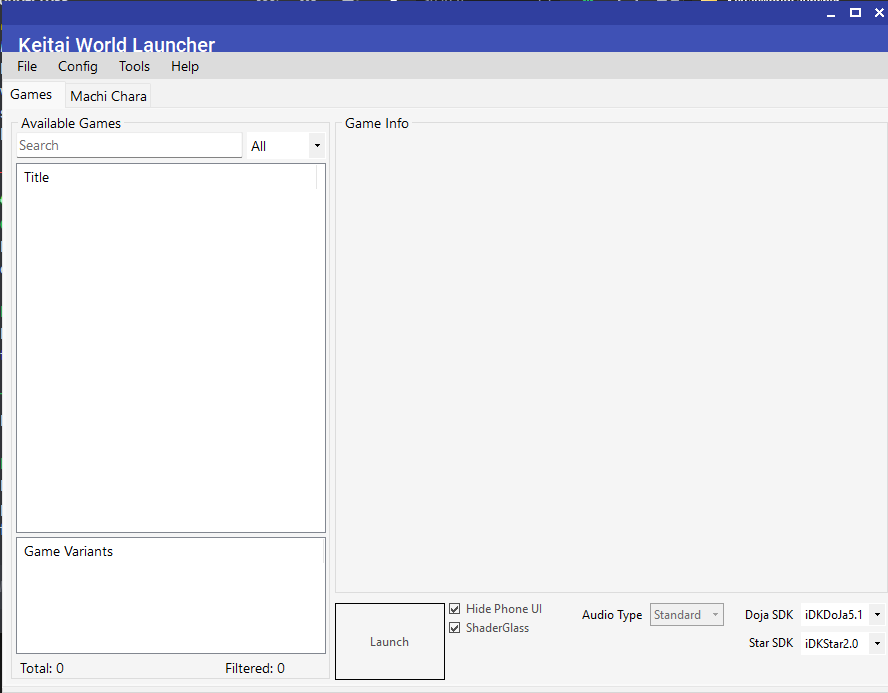
Step 6: Import Pied Piper by selecting “Add Games” under “Tools”. The program will prompt you to select the folder that you extracted Pied Piper to all the way back in step 3. The Program will automatically import the jam/jar/sp files. If you were successful you should get this dialog box:
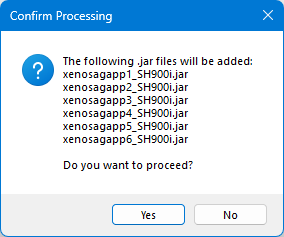
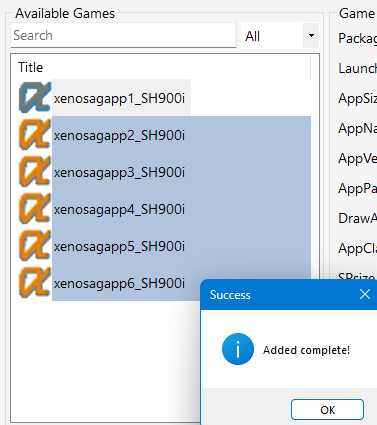
You may now select the chapter of your choice, hit launch and enjoy the game! The program will launch into two separate windows, one at native resolution and one with Shaderglass. You can make the Shaderglass window larger by menuing Output>Scale (choose the size best for your screen). Ensure the native window is actually selected to be able to control the game.
Game Controls:
Arrow Keys: Movement/menu selection
Enter Key: Advance text/Interact/Confirm Menu
Number Keys: Combat selection/Number Keys
S key: Change Character/Skip Cutscenes
A Key: Open Menu/Go Back in Menu (Enter is select)
In Combat: A Key = menu, S Key + Direction = Boost